GoldieBench Blog · 6 min read
Grok Bot Sharing Explained: How To Share A Team Bot, The Admin Switches, What Colleagues Get, And Why The Model Does Not Change It
Sharing a Grok Bot step by step, with the admin settings and a short note on where benchmark scores fit.
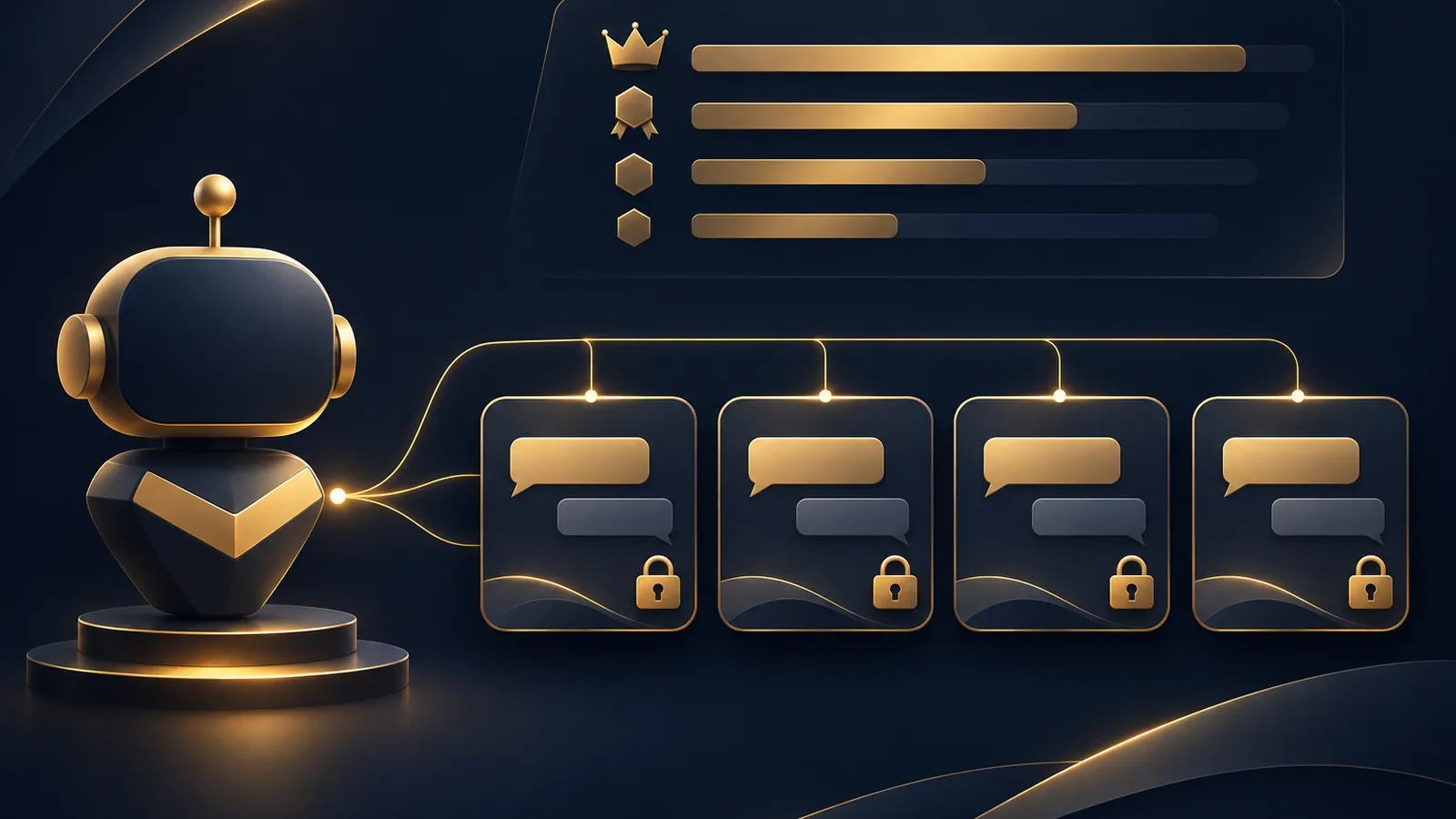
Grok Bot sharing is how one person's Bot becomes a Team Bot for colleagues: you publish it from draft, press Share, choose the team, the organization or named people, and each person then chats with that same Bot in a private conversation.
This guide covers the sharing steps first, then the admin switches, what each colleague actually gets, and a short note on why the leaderboard here doesn't change any of it.
Sources: xAI's Team Bots page, the admin guide for teams and enterprises, the Bots page on templates, and the Grok Bot changelog.
For roles and the dashboard tour, see the Grok Bot teams overview.
Planning a team rollout? Book a free SEO strategy session with my team.
Requirements: plan, team size and where the Bot runs
Team Bots are on the Team and Enterprise plans, for members with Grok Bot access.
Your team needs a second member before the create and share options work.
The Bot has to run in the cloud, because a Bot on your own machine can't be shared.
Phone users need Grok Bot 1.19.0 or later on iPhone or Android to share and browse.
From draft to published Bot
Start from + in the sidebar and choose Create a Bot.
Name it, state its job in a sentence, and complete its setup for apps, secrets, skills and files.
Think of that setup as the Bot's shared toolkit. Every colleague's chat can use all of it, so leave personal keys out.
The Bot stays a private draft until you choose Publish, which it suggests once it's ready.
An existing Bot can be shared too. It's shared in place rather than copied.
The Share this Bot panel
Choose Share at the top right of the Bot's chat.
| Control | What it does |
|---|---|
| Who has access: your team | Opens the Bot to every team member |
| Who has access: your organization | Opens it to the whole organization |
| Who has access: People you invite | Restricts it to added people and groups (Limit access) |
| Add people or groups | Adds someone as a Collaborator |
| Role menu: Manager | Lets that person edit and share the Bot |
| Copy link | Copies a link to the same Bot |
Owner and Managers keep access whatever is selected. Choosing Only you and confirming Remove ends sharing.
How colleagues find the shared Bot
- The link you sent, then Start a chat.
- + then Browse shared Bots, which shows each Bot's creator.
- The desktop command menu: Cmd or Ctrl plus K, then Browse shared Bots, with Popular Bots first.
- Asking one of their own Bots which Team Bots fit a task.
- An admin's Auto-add, which puts it in their sidebar for them.
Admin switches that shape sharing
On the Grok Bot page of the Cursor dashboard, the Sharing section holds three settings.
- Bot sharing: Everyone, the default, or Admins only. With Admins only, members see Only team admins can share Bots. Already-shared Bots keep working.
- Allow Shared Logins: off by default. Required before a Manager can share their own app login with a Bot.
- Slack Workspace Access: on by default. Lets Slack workspace members outside the team use Bots shared with the organization.
Version 1.0.1 of the changelog, dated 11 November 2026, introduced the Bot sharing limit and the shared-login option.
What each colleague gets
A private conversation. Neither the owner nor any Manager can read it.
The owner's apps and secrets, working the same for everyone.
A request before the Bot uses their own accounts, answered with Allow once, Always allow or Skip.
Approval cards for risky actions, which only the person asking can answer.
Replies charged to their own Grok Bot usage, not the owner's.
Team learning and the review queue
A Team Bot keeps memory and skills that benefit everyone using it.
When a colleague teaches it something for the team, the Bot suggests the change rather than saving it.
Owners and Managers approve or reject each suggestion under Review learnings. Personal details about a colleague are never saved for the team.
The changelog confirms that teammates' teaching now waits there until approved.
Shared connectors
For one app everyone needs, an owner or Manager can set a shared connector under Setup, then Service accounts.
The options: individual accounts, sharing their own account, or the Bot's own account where supported.
Sharing their own account means every colleague acts through it, so the docs advise picking one with nothing sensitive in it.
Templates as an alternative
When someone should own a separate copy, share a template: Share, then Create a copy, publish and copy the link.
Template links start public and expose the Bot's identity, description, skills and routines, but never your computer, logins or chats.
Admins can restrict this under Public template sharing, which Enterprise teams start with switched off.
Does the model matter for sharing?
No. The security page says Grok Bot manages model selection itself and offers no model picker, so nothing about sharing depends on a model choice.
The GoldieBench leaderboard scores models on one-shot build tasks. It's useful when you pick a model for agents you run yourself, not for deciding how to share a Grok Bot.
A sample rollout for a ten-person team
Week one: the owner builds a Bot for one shared job, such as drafting replies to common customer questions, and keeps it in draft while testing.
Week two: it's published and shared with three invited colleagues, one of them set as Manager. The admin sets Bot sharing to Admins only so no other Bots appear yet.
Week three: the Manager approves the first batch of learnings, and access widens to the whole team.
Week four: the owner or Manager connects it to Slack, and the admin decides whether a shared connector is worth switching on for one low-risk tool.
Each step is reversible except deletion, which is why the Bot is widened in stages rather than all at once.
Removing access later
The owner can choose Only you under Who has access to unshare, confirming with Remove, or remove a single person from the role menu.
Colleagues can hide a Bot with Remove from sidebar, unless an admin auto-added it.
Deletion, by the owner or an admin in Manage Bots, takes the Bot, its chats and its routines away from the whole team permanently.
Quick fixes
- Team Bots Not Available: your account lacks Team Bot access.
- No Access to This Bot: ask the owner or a Manager to add you.
- This Bot's owner has reached their usage limit: the reply was billed to the owner; they check their plan.
- Browse shared Bots missing: join a Cursor team or update the app.
The setups behind shared AI teammates are taught step by step in the AI Profit Boardroom.
Also On Our Network
- Agent Operatorsevery click, admin switch and error string for sharing a Team Bot
- AI Income Deskthe owner-friendly way to give staff one shared AI helper
- AI Tool Verdictevery sharing option side by side, with who each one suits
- agentos.guidethe four sharing moves plus three Agent OS prompts to prepare the rollout
- aiprofitboardroom.comthe complete Grok Bot sharing guide on AI Profit Boardroom
Publish one tested Bot, share it with invited colleagues first, approve its learnings weekly, and grab a free SEO strategy session, or learn the builds in the AI Profit Boardroom, if you want help scaling Grok Bot sharing across your team.
FAQ
What does sharing a Grok Bot actually share?
The Bot itself, with the owner's apps, secrets, skills and files. Each colleague gets a private chat with it, not a copy.
Is Slack included when I share a Bot?
Sharing sets who can use it in Slack once an owner or Manager connects it. Bots shared with the organization reach full workspace members.
Can I pick the model for a shared Bot?
No. Grok Bot manages model selection itself and has no model picker.
Who pays the usage when a colleague chats with my Bot?
The colleague. A Team Bot reply uses the Grok Bot usage of the person it is answering.
Can an admin force a Bot into everyone's sidebar?
Yes. Auto-add under Manage Bots adds it for the whole team or chosen groups, and those members cannot hide it.
Do template copies include my logins?
No. A template copy never includes your computer, logins or conversation history.
Keep reading
 Grok Bot Teams + Which AI Models Matter: What Real GoldieBench Scores Tell A Team Using Shared Bots
 Grok Bot Enterprise Explained: What It Is, The Features, Team Bots, Team vs Enterprise Controls, And What Benchmarks Can Tell You
 Grok Bot Connectors + Which AI Models Should Handle Your Connected App Data, With Real GoldieBench Scores
🌐 Sister-site take: read this on agentos.guide